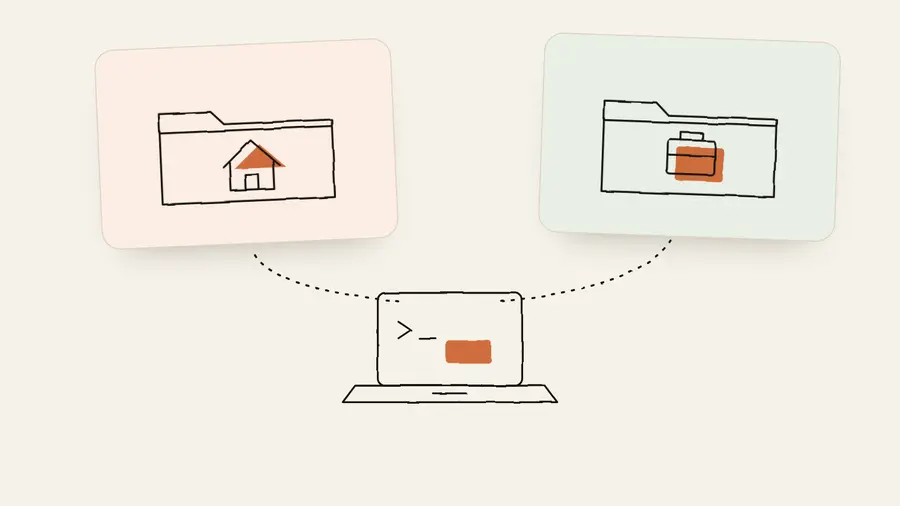
I work for two businesses from one laptop. My own work runs under frankspin.nl, and client work for Made by Spin runs under a separate Claude account with its own subscription and its own usage limits.
For a while that meant logging out and back in. Forget it once and a client project eats into the wrong budget. Forget it twice and you stop trusting the setup.
So I asked a different question. Not “how do I install Claude twice”, but “what actually makes one Claude different from another?”
Claude Code is a folder with state
The answer is simple. Claude Code keeps everything that makes it yours in one folder: ~/.claude. Your login, your session history, your project memory, your settings. The program itself doesn’t care which folder it reads. It reads the one you point it at.
That pointer is an environment variable: CLAUDE_CONFIG_DIR. Set it to another folder and you get a second, completely separate Claude. Same binary, same version, different account.
So there’s one install on my Mac, not two. There are two folders. The rest of this post is the full setup, step by step: the terminal, the desktop app, the Dock and Chrome.
Step 1: a second folder that shares what’s mine
Two separate folders also means two separate everythings, and that’s not what I want. My instructions, my skills and my plugins are how I work. They should be the same on both accounts.
So I split it in two:
- Shared, through symlinks:
CLAUDE.md,settings.json,skills/andplugins/in the second folder point to the ones in~/.claude. One source, change it once. - Separate, by design: login, history, sessions and project memory. Those belong to the account and to the client.
mkdir -p ~/.claude-work
for f in CLAUDE.md settings.json skills plugins; do
  ln -s ~/.claude/$f ~/.claude-work/$f
done
Step 2: the terminal picks the account for me
I didn’t want to remember a second command. I wanted the folder I’m standing in to decide. Everything for Made by Spin lives under ~/dev/madebyspin, so that’s the rule.
MCP servers need one extra step. They live in .claude.json, the same file that holds the login, so a symlink would share the login too. Instead a small function copies only the mcpServers keys (global and per project) from the main file into the work file with jq, right before the work account starts.
In my .zshrc:
WORK_DIRS=("$HOME/dev/madebyspin")

# Copy MCP servers from the main account, leave the login alone
claude-work-sync() {
  local main="$HOME/.claude.json" work="$HOME/.claude-work/.claude.json"
  [[ -f "$main" ]] || return
  [[ -f "$work" ]] || echo '{}' > "$work"
  jq --slurpfile m "$main" '
    .mcpServers = ($m[0].mcpServers // {})
    | reduce ($m[0].projects // {} | to_entries[] | select(.value.mcpServers)) as $p
        (.; .projects[$p.key].mcpServers = $p.value.mcpServers)
  ' "$work" > "$work.tmp" && mv "$work.tmp" "$work"
}

claude-work() {
  claude-work-sync
  CLAUDE_CONFIG_DIR="$HOME/.claude-work" command claude "$@"
}

claude() {
  local dir
  for dir in "${WORK_DIRS[@]}"; do
    if [[ "$PWD/" == "$dir/"* ]]; then
      claude-work "$@"
      return
    fi
  done
  command claude "$@"
}
command claude skips the function and runs the real program. Inside a client folder, claude quietly becomes the work account. Anywhere else it’s my own. I type the same thing everywhere.
The sync needs jq, which macOS ships these days. Check with which jq, or install it with Homebrew.
Step 3: log in once with the second account
Open a new terminal (or run source ~/.zshrc), go to a client folder and start Claude:
cd ~/dev/madebyspin
claude
Because ~/.claude-work has no login yet, Claude asks you to sign in. Use the work account. That login is stored in the work folder only, and from then on every claude in a client folder uses it.
Step 4: the desktop app works the same way
The Claude desktop app is an Electron app, and Electron has its own version of the same trick: --user-data-dir. Point it at a different folder and you get a second instance with its own login, cookies and usage.
Starting it twice would open a third window every time, so I wrote a small script that brings an instance to the front when it’s already running. I saved it as ~/.local/bin/claude-instance:
#!/bin/zsh
# Usage: claude-instance [user-data-dir]   (no argument = the normal Claude)
dir="$1"
pid=""
for p in $(pgrep -f '^/Applications/Claude.app/Contents/MacOS/Claude( |$)'); do
  cmd=$(ps -o command= -p $p)
  if [[ -n "$dir" ]]; then
    [[ "$cmd" == *"--user-data-dir=$dir"* ]] && pid=$p && break
  else
    [[ "$cmd" != *"--user-data-dir="* ]] && pid=$p && break
  fi
done
if [[ -n "$pid" ]]; then
  osascript -e "tell application \"System Events\" to set frontmost of (first process whose unix id is $pid) to true"
elif [[ -n "$dir" ]]; then
  open -n -a /Applications/Claude.app --args --user-data-dir="$dir"
else
  open -n -a /Applications/Claude.app
fi
open -n starts a new instance even when Claude is already running.
A second script, ~/.local/bin/claude-work-desktop, first copies the settings worth sharing from the main profile: local MCP servers, desktop extensions and SSH hosts. Login and cookies stay behind. Then it starts the work instance:
#!/bin/zsh
main="$HOME/Library/Application Support/Claude"
work="$HOME/Library/Application Support/Claude-Work"
mkdir -p "$work"
for f in claude_desktop_config.json extensions-installations.json extensions-blocklist.json \
         mcp-user-tool-toggles.json ssh_configs.json; do
  [[ -f "$main/$f" ]] && cp -p "$main/$f" "$work/$f"
done
for d in "Claude Extensions" "Claude Extensions Settings"; do
  [[ -d "$main/$d" ]] && rsync -a --delete "$main/$d/" "$work/$d/"
done
exec "$HOME/.local/bin/claude-instance" "$work"
Make both executable with chmod +x ~/.local/bin/claude-instance ~/.local/bin/claude-work-desktop. The first time the work instance opens, it’s empty, so you sign in there with the work account. Again, it’s one login, once.
Step 5: two apps with their own icon in the Dock
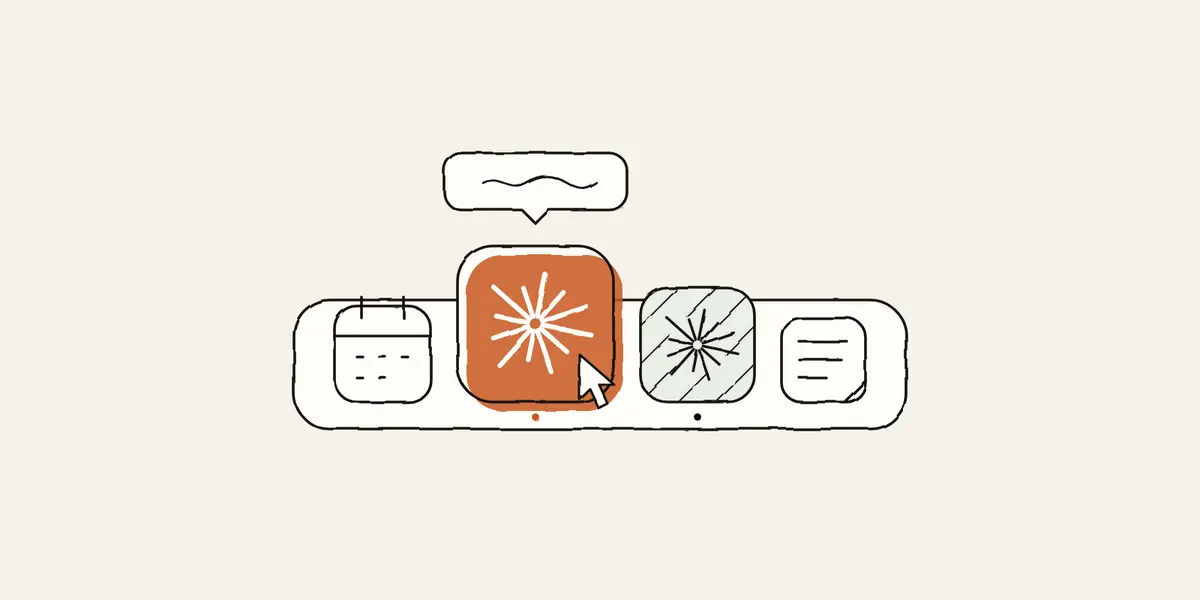
Scripts are fine, but I wanted to click. So each instance became a tiny app.
In Script Editor I made a new script with one line, and chose File › Export with File Format: Application:
do shell script "$HOME/.local/bin/claude-work-desktop > /dev/null 2>&1 &" I saved that as Claude Werk in /Applications. For Claude Privé the line calls claude-instance without an argument, so it opens (or brings forward) the normal profile:
do shell script "$HOME/.local/bin/claude-instance > /dev/null 2>&1 &" Exported apps get the standard script icon. Two identical icons in the Dock is asking for mistakes, so each got its own. The icon lives in the app bundle as Contents/Resources/applet.icns:
-
Claude Privé got Claude’s own icon, copied straight from the app:
cp /Applications/Claude.app/Contents/Resources/electron.icns \ "/Applications/Claude Privé.app/Contents/Resources/applet.icns" -
Claude Werk got the same icon in blue. Unpack it with
iconutil -c iconset electron.icns, recolour the PNGs in any image editor, pack them again withiconutil -c icnsand copy the result overapplet.icns.
Changing a file inside the app breaks its signature, so sign it again (locally, no developer account needed):
codesign --force --deep -s - "/Applications/Claude Werk.app"
codesign --force --deep -s - "/Applications/Claude Privé.app"
Then drag both apps to the Dock. If the Dock still shows the old icon, killall Dock refreshes it. Now I have an orange Claude for my own work and a blue one for Made by Spin, and Spotlight finds both by name.
Step 6: two Chrome profiles, one for each Claude

The last piece was the browser. Claude can drive Chrome through the Claude in Chrome extension, and that’s where things get personal: the browser carries your sign-ins. I don’t want my own Claude clicking around in a client’s dashboards, or the other way round.
So Chrome got the same split. Via the profile icon in Chrome, Add creates a second profile. I have two: privé and werk. In each profile I installed the Claude extension and signed in with the matching account. Each Claude works in its own browser, with its own cookies and its own logged-in tools. Same Chrome, same extension, two separate worlds.
What I’d watch out for
- One-way sync is a choice, not a bug. Change shared settings in the main account only. If you change them in the second account, the next sync overwrites them.
- Check your
PATH. While setting this up I found an old global pnpm install of Claude Code, version 2.0.5, still sitting in myPATH. It never ran because the current install comes first, but it’s exactly the kind of thing that makes you wonder which Claude you’re actually talking to. Runwhich -a claudeonce. - Don’t share the login file. It’s tempting to symlink the whole folder. Don’t. That’s the one thing that has to stay apart.
Why bother
It’s a small setup. A few shell functions, a handful of symlinks, two scripts, two little apps and two Chrome profiles. But it removed a daily moment of friction and a real risk of mixing up client work and my own.
And it changed how I look at these tools. Claude Code isn’t a magic box. It’s a program with a folder of state. Once you see that, running two of them is just a matter of choosing which folder.